
Publish settings
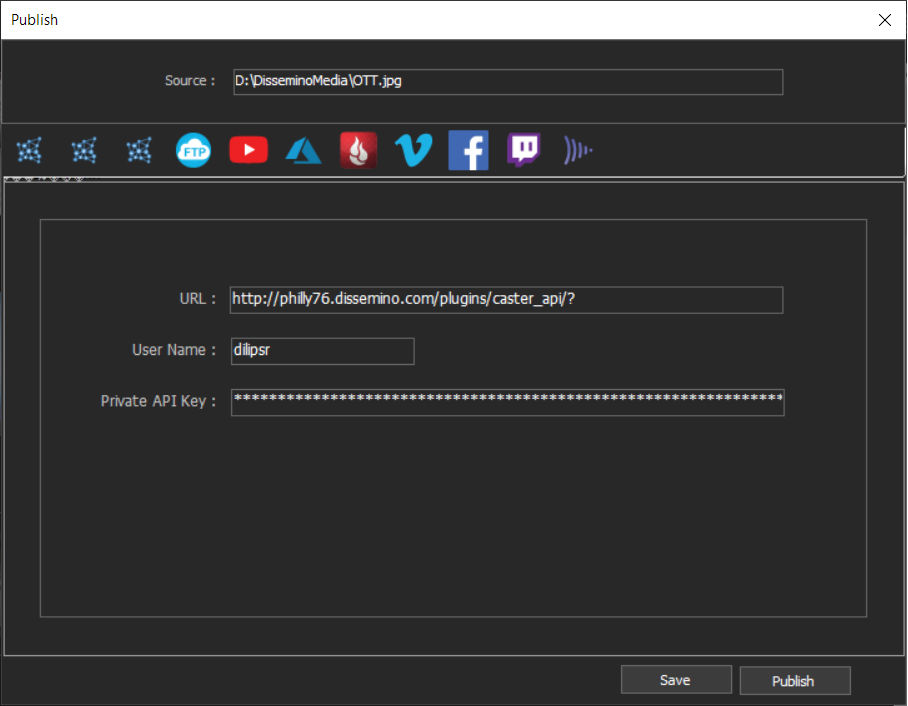
Use the Publish tab to upload files to the following destinations: Azure, Backblaze, Dissemino MAM, Facebook, Frame.io, FTP,Twitch , Vimeo, YouTube
FTP
A File Transfer Protocol (FTP) server has storage space allocated for file sharing. FTP is a common method for transferring files over a network and is especially useful for sharing relatively large files using an Internet connection. The server administrator can provide you with the details for connecting to the server.
To upload your encoded file to an FTP, click on the tab with FTP icon.
- In the Username field, enter your username, as specified by the server administrator.
- In the Password field, enter the password required to log in to the server.
- In the Server field, enter the DNS or IP address of the server on which the FTP site is located.
- In the Port field, enter the number assigned to the FTP server command port. By default, it is 21.
- In the Remote Path, enter the access location on the FTP. It is expressed as a file path.
- In the Retries field, enter the number of attempts to contact the server if a connection is not established.
- To delete the local file after uploading to Facebook, select Delete local file after upload.
Facebook settings
To upload your encoded file to Facebook, check the Facebook settings box and log in to Facebook.
- Click Log in. You get redirected to the Facebook login page.
- Enter your credentials to allow Dissemino Media Browser to manage your Facebook videos.
- After you log in, check the Pages menu for seeing any pages that exist for your Facebook account. Choose one from the menu to upload your video to that page.
- Enter a name for your uploaded file in the Title field. If you leave this field blank, the output file name gets used as the title.
- Select Privacy, and choose your desired privacy settings.
- Select Post, and type a description for your video.
- To delete the local file after uploading to Facebook, select Delete the local file after upload.
YouTube settings
To upload your encoded files to YouTube, select the YouTube Tab and log in to YouTube.
- Click Log in. You will be redirected to the Log in screen on the YouTube/Google site.
- Enter your credentials and allow Dissemino Media Browser to upload video to YouTube.
- Close the browser, and the account that you used to log in to YouTube is displayed under Account settings back in Dissemino Media Browser.
Vimeo settings
Select the option next to Vimeo settings and log in to Vimeo to upload your encoded files.
- Click Log in. You get redirected to the log in screen on Vimeo.
- To manage your Vimeo videos, enter your credentials and allow Dissemino Media Browser.
- Close the browser. You can see the account that you used to log in to Vimeo is displayed under Account settings.
- In the Title field, enter a name for your uploaded file. If you leave this blank, the output filename gets used as the title.
- In the Description field, enter a description for your uploaded video.