
Dissemino messages
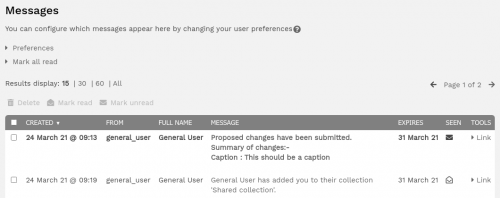
Messages are used by Dissemino to ensure notifications are prominently displayed so required actions are not overlooked. As new messages are received, a counter next to the user's profile will increase to indicate the activity.

licking on the user icon will bring up the user's menu, within which, separate pills will indicate the corresponding number of messages and actions that make up the total count displayed.
Managing your messages
On the Messages page you can manage all messages sent your user. You can mark messages as read or unread and delete them using the links at the top of the table when at least one message is selected.
Changing your messaging preferences
You can control which messages you receive by managing your 'Preferences' settings from the user menu at the top of the screen.
| Show me system notifications on screen as they are received. If disabled, the counter will still update to indicate the presence of new messages | This option is useful if you receive a lot of notifications and want to quickly check messages without having to navigate to the messages screen |
| Send me resource messages about resource management e.g. resource state changes, metadata changes | Enabling this will keep you up to date when resources are submitted for approval or resources you have submitted have been sent back for further changes |
| Send me messages about important system events e.g. low disk space | Administrators only. For information about important server events |
| Send me user administration messages e.g. new user account requests | To notify user administrators when a new account request has been made |
| Send me messages about resource access e.g. resource requests | This will send you messages when users request access to restricted resources |