
Managing offline jobs
The My Jobs page is used to check on the status of your jobs e.g. collection downloads, preview creation etc. System administrators can also use this page to check on the status of jobs systemwide
To view your jobs click on the user preferences icon and click 'My jobs'
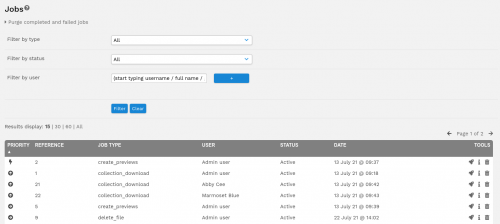
The page shows you the following information about jobs in the queue:-
The job priority*
The job reference
The job type
The user that created the job (admins only)
The job status
The earliest job start date
The tools column has the following options:-
Delete the job (e.g. if no longer required or completed**)
Job information (admins only). This will display the technical information about the job
Reset job (admins only). The job will then be re-run
Boost job (admins only, v9.7+). The job priority will be increased so that it will be the first job processed the next time the offline job script is run. If more than one job is boosted then the job with the earlier start date will take priority
* See notes on priority below
** Completed jobs will only appear if the configuration setting $offline_job_delete_completed is set to false.
Filtering the jobs
The page allows you to filter the jobs by job type, job status or the user that created the job to make it easier to see only those jobs that you are concerned with. To select a user start typing the name and then select the required user from the list that appears. To apply the filter click on the 'Filter' button.
Priority
Job priority will be available from version 2.3. The job priority is indicated by the following icons:-
Urgent. Run before any other jobs
User jobs - these are jobs that users are waiting on
System jobs e.g. preview creation.
Used to indicate completed jobs